
Adding custom connectors (MCP) requires a Gemini Enterprise subscription. It
is not available in the consumer Gemini app.
1. Open the connector settings
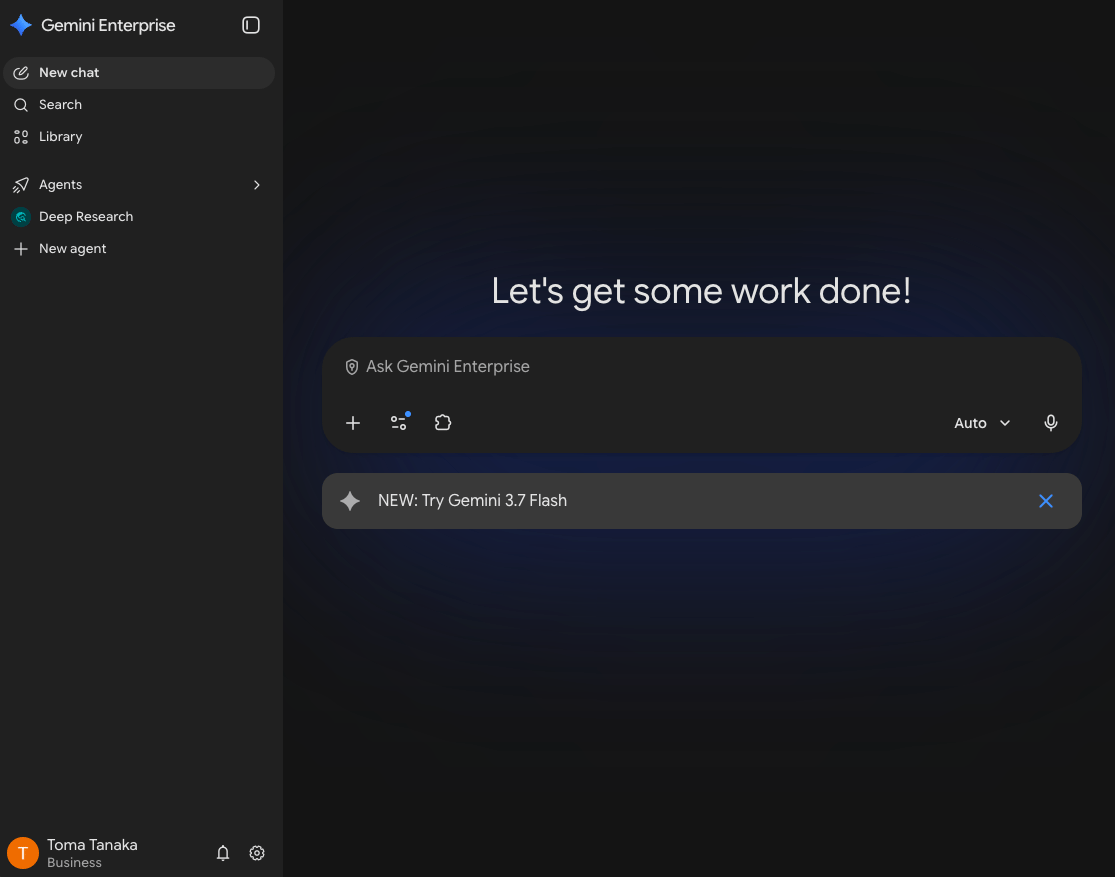
- Sign in to Gemini Enterprise with your organization’s Google account and open the settings menu from the gear icon at the bottom left
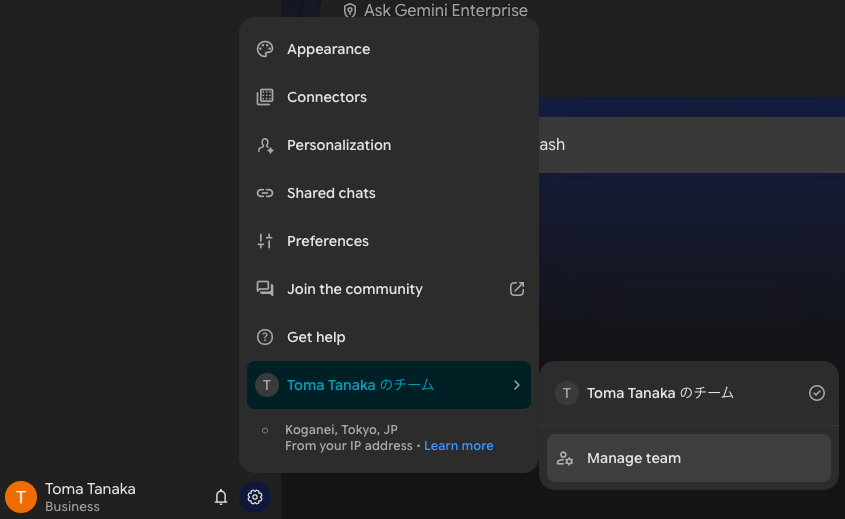
- Select Connectors
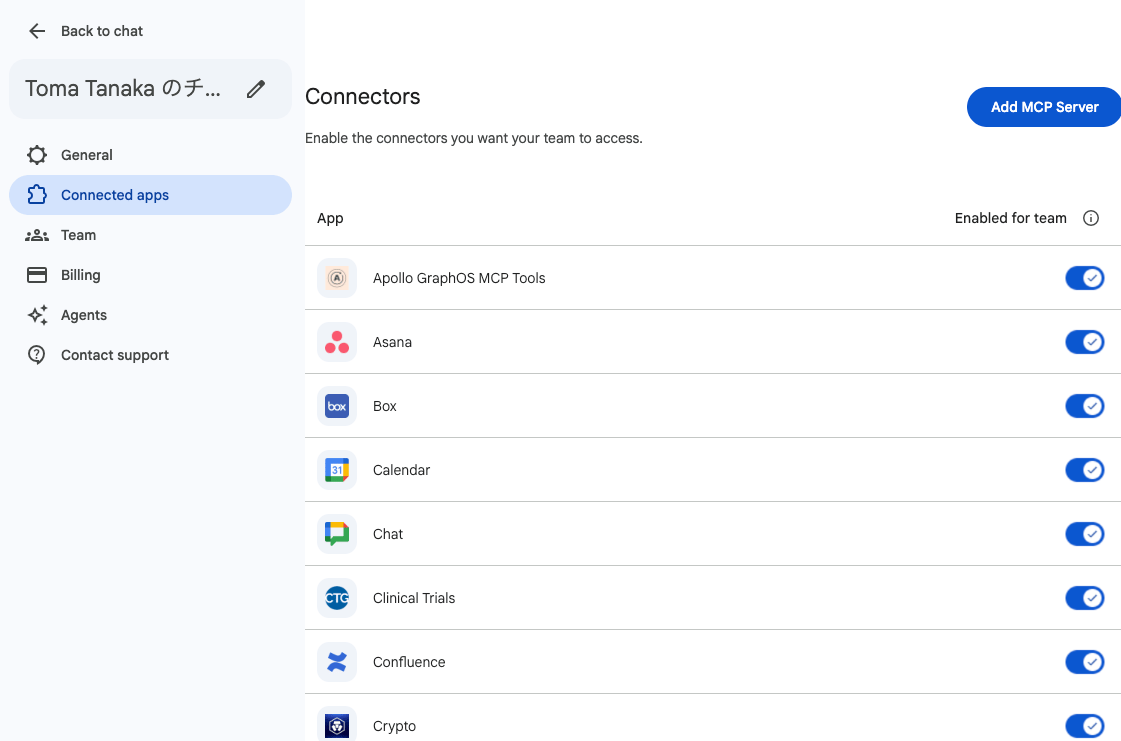
- Click Add MCP Server at the top right of the connector list
2. Add the MCP server
Fill in the MCP info tab and click Next:- Server URL:
https://mcp.arlet.dev/mcp/ - Name:
Arlet
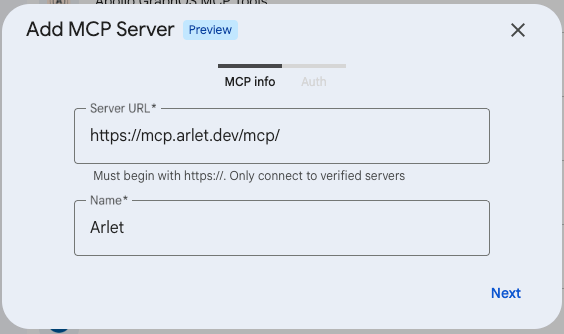
3. Configure OAuth
Enter the following values in the Auth tab exactly as shown: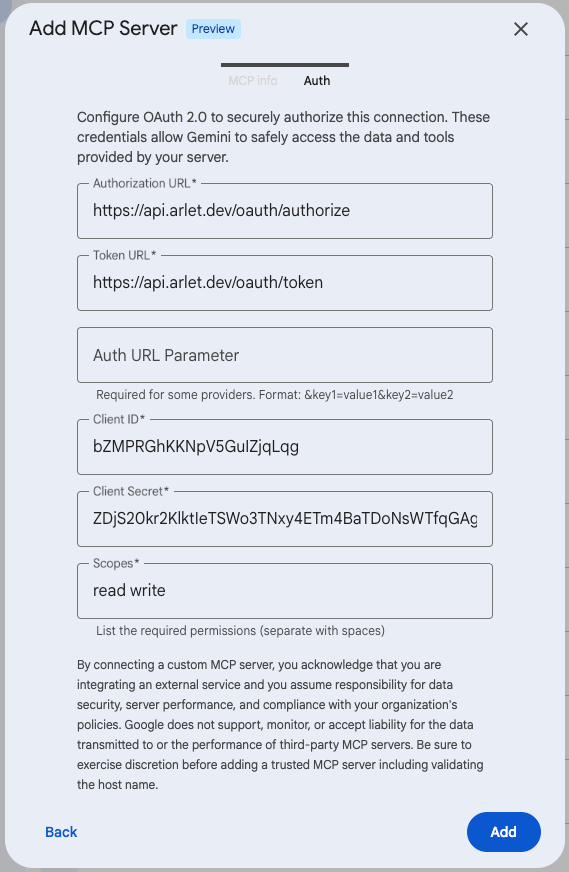
This Client ID / Client Secret is a shared client dedicated to Gemini
Enterprise connections. Access is granted not by these values but by each
user’s individual sign-in and authorization in the next step.
4. Connect to Arlet
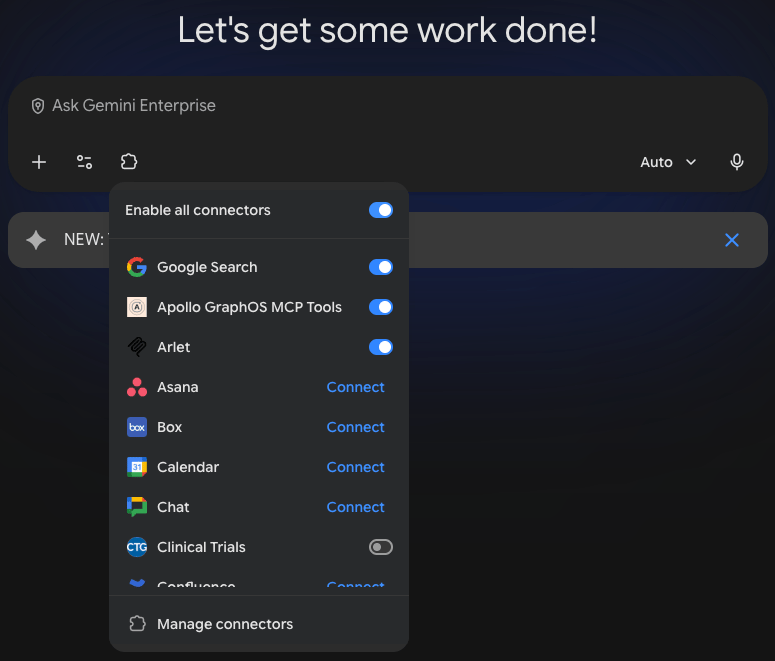
- Open the connector icon in the chat screen — Arlet appears in the list. Click Connect
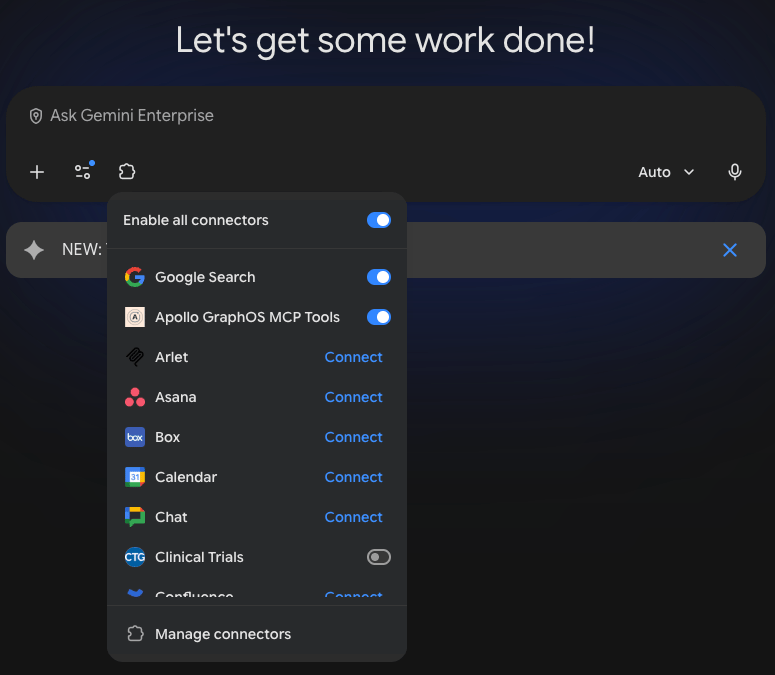
- An authorization dialog appears. Click Continue to Arlet
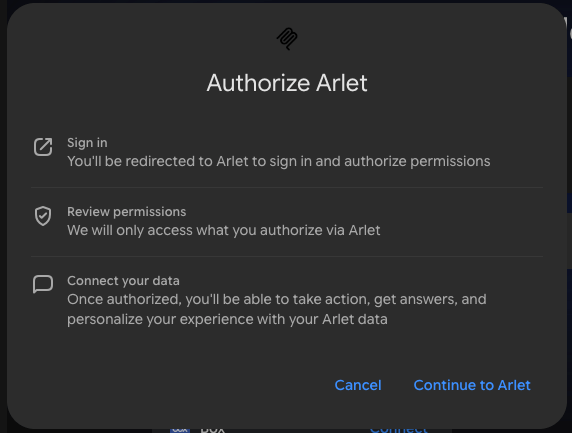
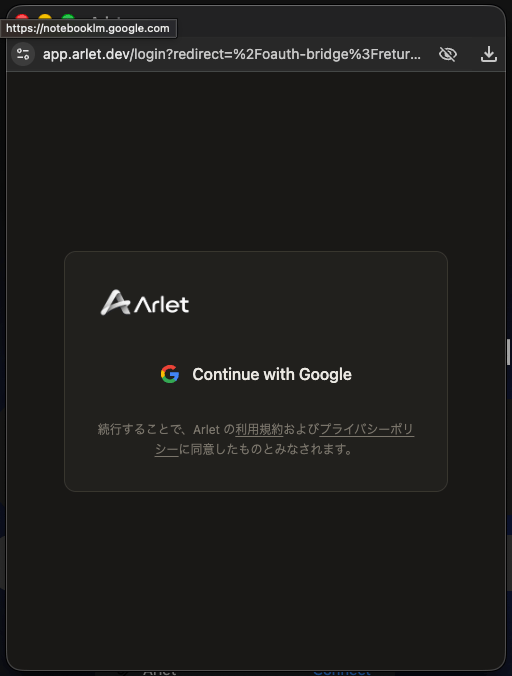
- Arlet’s sign-in screen opens. Sign in with Google and complete the OAuth flow
- Once connected, Arlet can be enabled with the toggle in the connector list