> ## Documentation Index
> Fetch the complete documentation index at: https://docs.arlet.dev/llms.txt
> Use this file to discover all available pages before exploring further.
# ChatGPT
> How to connect Arlet with ChatGPT
Adding custom MCP servers may require **Developer mode** to be enabled. If
you don't see the plugin screens below, see the
[supplementary section](#supplementary-enable-developer-mode) at the end of
this page.
### 1. Add the plugin
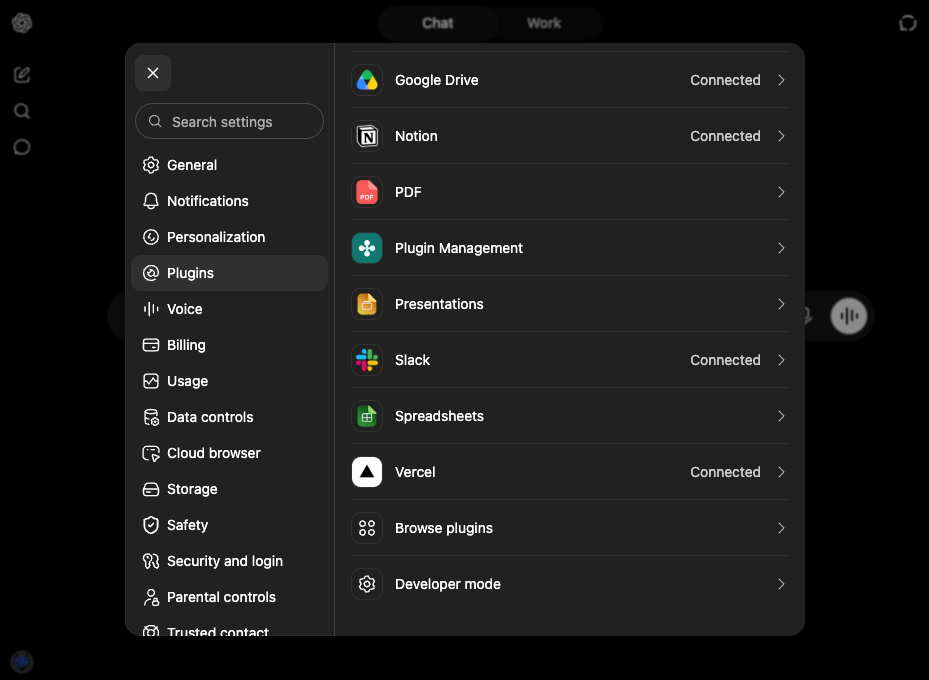
1. Open **Browse plugins** from **Plugins** in Settings
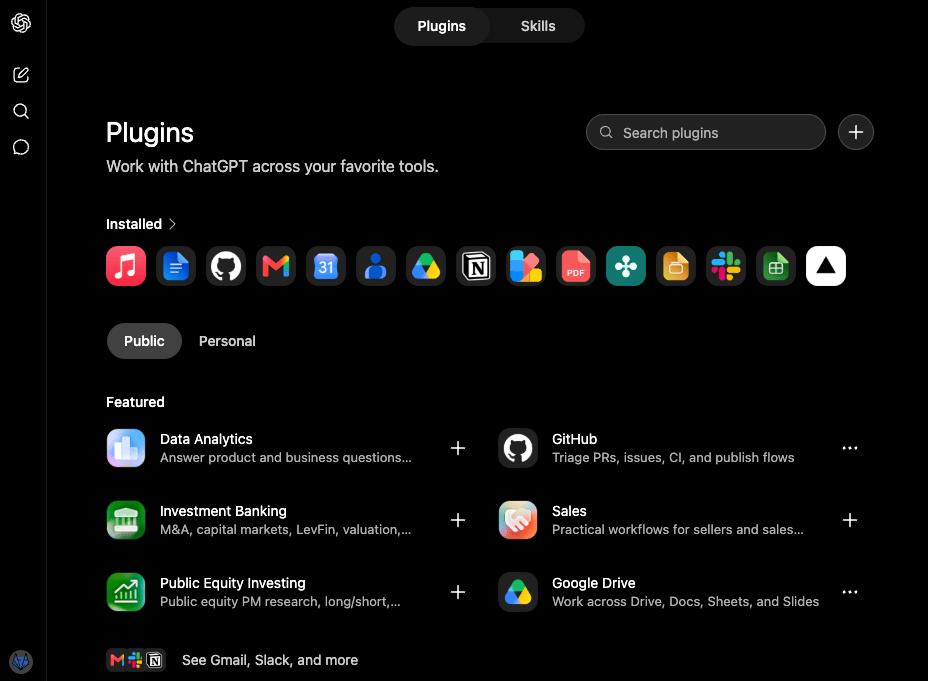
 2. Click **+** at the top right of the Plugins page
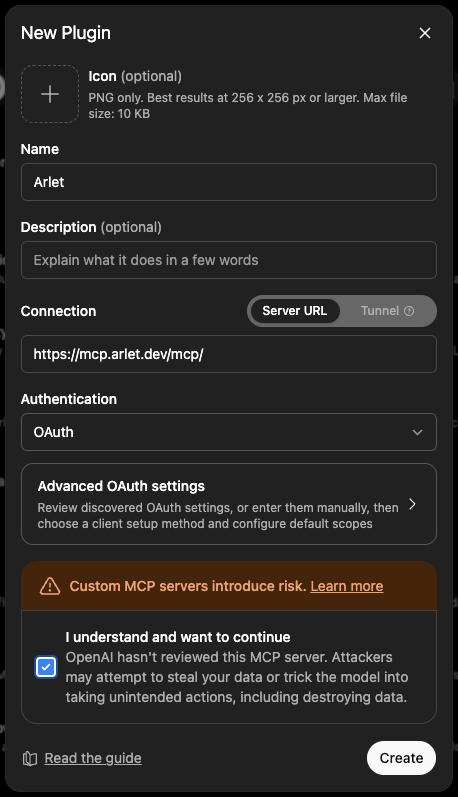
 3. Fill in the **New Plugin** form:
* **Name**: `Arlet`
* **Connection**: select `Server URL` and enter `https://mcp.arlet.dev/mcp/`
* **Authentication**: `OAuth`
4. Check the risk acknowledgement (**I understand and want to continue**) and click **Create**
3. Fill in the **New Plugin** form:
* **Name**: `Arlet`
* **Connection**: select `Server URL` and enter `https://mcp.arlet.dev/mcp/`
* **Authentication**: `OAuth`
4. Check the risk acknowledgement (**I understand and want to continue**) and click **Create**
 ### 2. Authentication
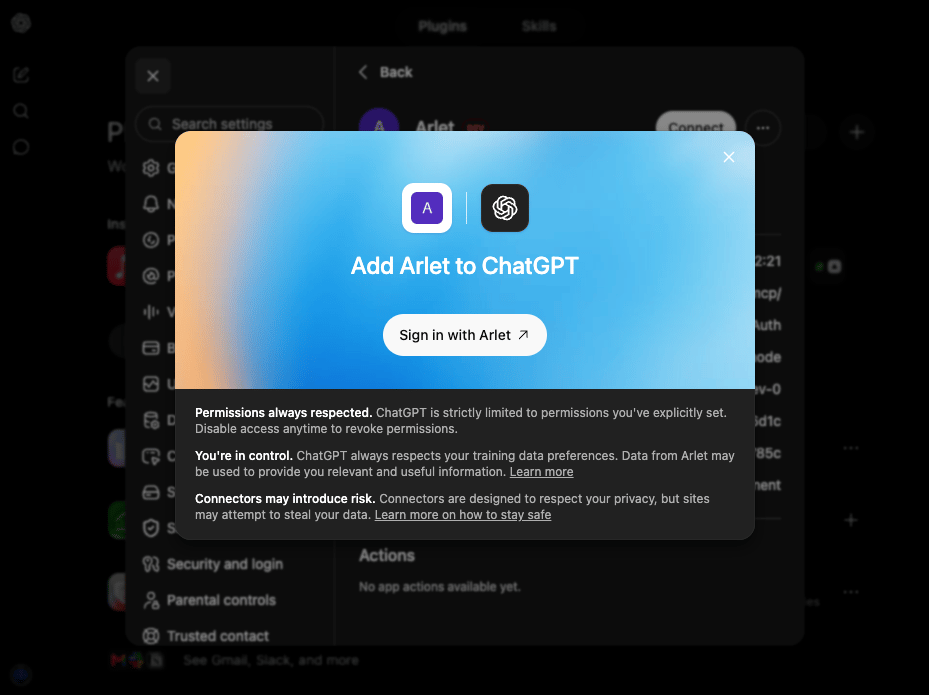
1. Open the Arlet plugin you created and click **Sign in with Arlet**
### 2. Authentication
1. Open the Arlet plugin you created and click **Sign in with Arlet**
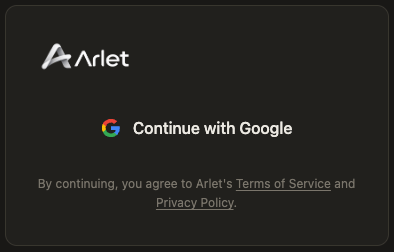
 2. Arlet's sign-in screen opens — sign in with Google
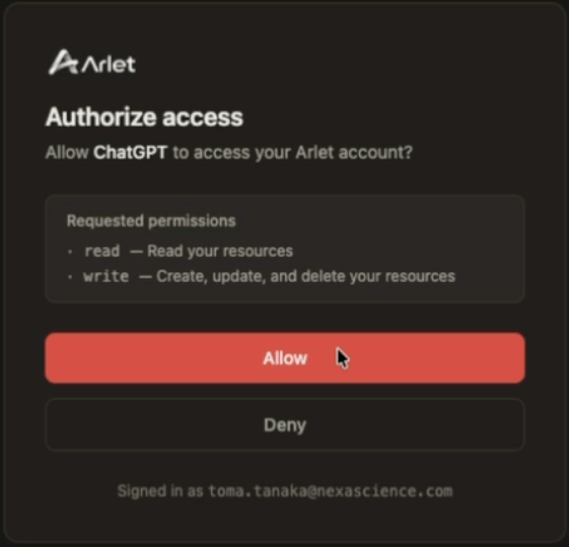
 3. Click **Allow** on the permission screen to complete the connection
 ### Supplementary: Enable Developer mode
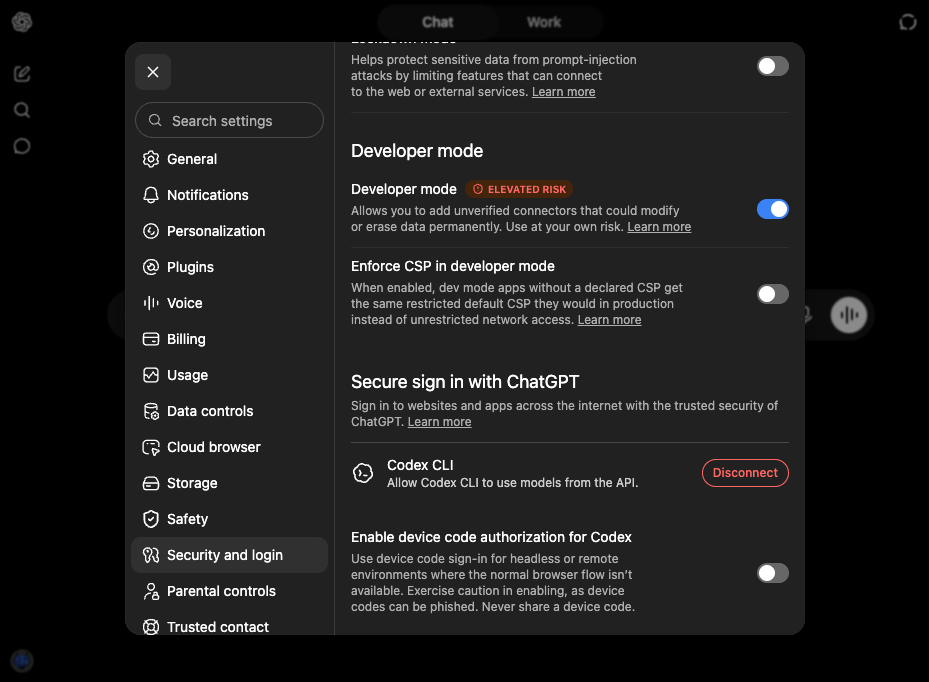
If the plugin screens (**Plugins** in Settings) are not visible, enable Developer mode first.
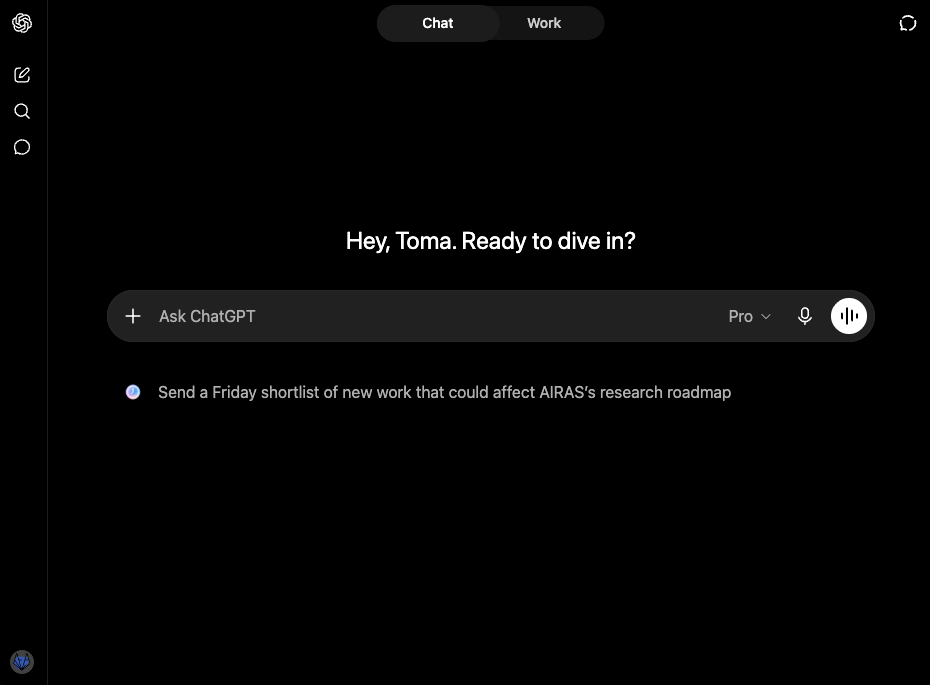
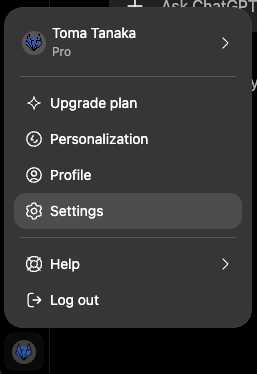
1. Sign in to [ChatGPT](https://chatgpt.com/) and click your account icon at the bottom left
### Supplementary: Enable Developer mode
If the plugin screens (**Plugins** in Settings) are not visible, enable Developer mode first.
1. Sign in to [ChatGPT](https://chatgpt.com/) and click your account icon at the bottom left
 2. Open **Settings** from the menu
 3. Turn on **Developer mode** under **Security and login**